
Example company: Seleda Technology PLC
We use a real taxpayer shape from the Ministry of Revenues portal so every Fidel field has a concrete value you can copy from your own account.
Seleda Technology PLC (shown as STP on the portal) is registered on portal.mor.gov.et. Trade name, phone, email, establishment, and POS system numbers below come from that Source Management record.
- Organization — legal taxpayer: Seleda Technology PLC, TIN 0098164397
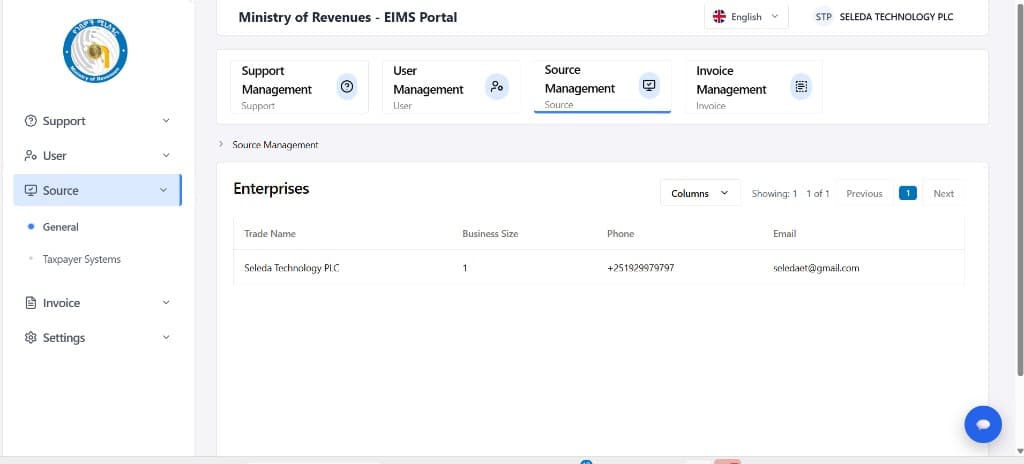
- Enterprise — trade name on the portal Enterprises list: Seleda Technology PLC, phone +251929979797, email seledaet@gmail.com
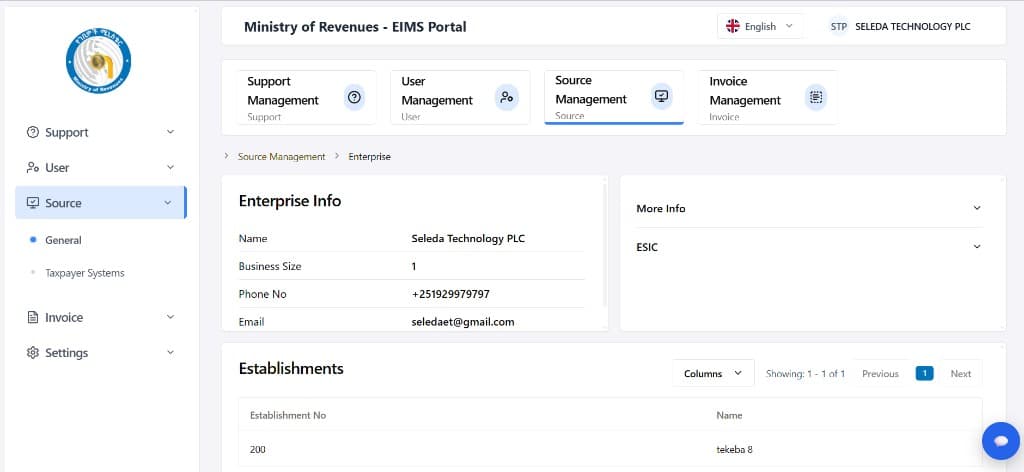
- Branch — Fidel name for a portal Establishment: tekeba 8 (Establishment No. 200), Bole / Addis Ababa
- Source — portal system under that establishment: POS, System No. 886BADA3B4 (status APPROVED)
Source Management → Enterprises (Seleda Technology PLC)portal.mor.gov.et
The full path
Complete these stages in order. The app redirects you until each required stage is done.
01
Account
Register → OTP → Login
02
Workspace
Enterprise → Branch → Source → PKI
03
Billing
Pay & wait for approval
04
Catalog
Customers + items
05
Invoice
Create → REGISTERED
What Organization, Enterprise, Branch, and Source mean
Invoicing follows a strict chain: enterprise, then branch, then source, then a signing certificate. You cannot skip a level.
Organization = the legal taxpayer
Created once at registration. Holds the legal business name and the company TIN. Think: “Who is registered with ERCA?” For Seleda, that is Seleda Technology PLC (TIN 0098164397). Trade names and shop VAT numbers do not live here — they move down to enterprise and branch.
Enterprise = the brand / business unit you work in
A trade name with contact email and phone — the same “Enterprises” row on the MOR portal. Customers, catalog items, and billing are scoped to the selected enterprise (header switcher). Seleda’s trade name is Seleda Technology PLC with seledaet@gmail.com.
Branch = Establishment on the MOR portal
A location under an enterprise. On portal.mor.gov.et this is called an Establishment (e.g. Establishment No. 200 · tekeba 8). In Fidel you create a Branch and copy VAT / Sub-TIN / region no / woreda no from that establishment record.
Source = the system that signs invoices
A POS, ERP, cash register, or custom integration attached to one branch — the Systems / Sources list under an establishment on the portal. Seleda’s example: POS System No. 886BADA3B4. Only a source with an INSA certificate and approved billing can create invoices.
PKI + Billing = permission to sign
Generate a private key, get an INSA X.509 certificate, then pay for that source and wait for approval. Certificate alone is not enough — both PKI and billing must be ready before “Add invoice” works.
Ministry portal ↔ Fidel (name map)
Sign in at portal.mor.gov.et, open Source Management, then copy values into Fidel. The words differ — the records are the same.
| On portal.mor.gov.et | In Fidel | Seleda example |
|---|---|---|
| Login (Username or email) | Fidel register / login | seledaet@gmail.com |
| Enterprise (Trade Name) | Enterprise | Seleda Technology PLC |
| Establishment | Branch | Establishment No. 200 · tekeba 8 |
| Create Source → Status APPROVED | Then create Source in Fidel | Wait for MoR approval first |
| MoR email: Source no + Client ID + Secret + API Key | Paste into Fidel source fields | eims.mor@gmail.com credentials email |
| System / Source (POS…) | Source | POS · 886BADA3B4 |
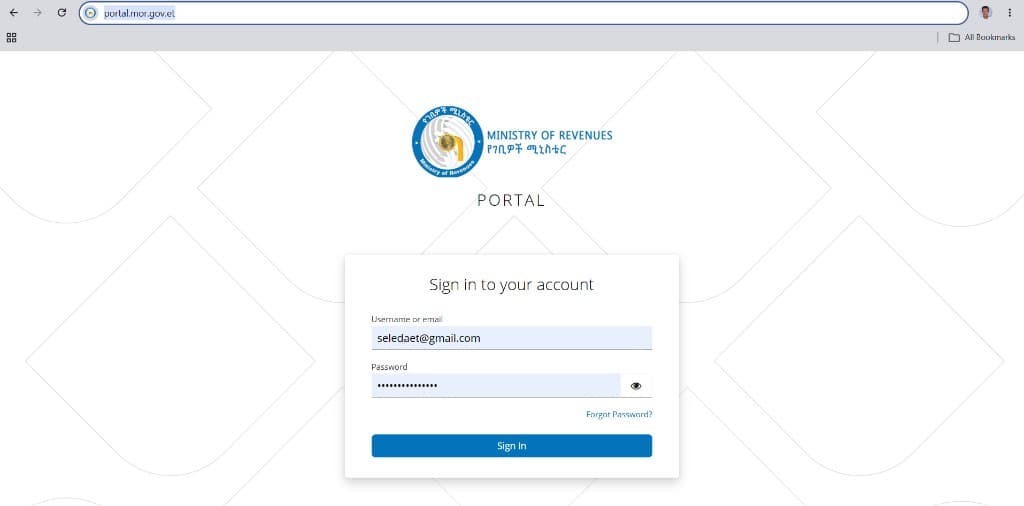
MOR Portal login — use the same email/phone you registered with the Ministryportal.mor.gov.et
Enterprise → Establishments list (these rows become Fidel Branches)portal.mor.gov.et
Register your organization
Create the legal taxpayer account and the first owner user.
Open /register. For Seleda, the organization name is the legal name on the TIN certificate — Seleda Technology PLC — matching the portal profile.
| Field | Required? | Why it matters |
|---|---|---|
Organization name e.g. Seleda Technology PLC | Required | Legal name of the taxpayer. Used as your organization identity in Fidel and for compliance records. |
Taxpayer ID (TIN) e.g. 0098164397 | Required | Exactly 10 digits. This is your ERCA taxpayer number — mandatory so invoices attach to the correct taxpayer. |
Administrator name e.g. Jemal (admin for Seleda) | Required | Full name of the owner/admin who will manage the account and receive invites for staff later. |
Administrator email or phone e.g. seledaet@gmail.com or 0929979797 | Required | Login identifier and OTP channel. Must be a valid email or Ethiopian mobile (09…, 07…, or +251…). |
Password / confirm password | Required | Minimum 8 characters. Protects the owner account; confirmation prevents typos at signup. |
Verify identity (OTP)
Confirm the email or phone before you can sign in.
On /verify, enter the 6-digit code. The form submits when the last digit is entered. Resend is available after 60 seconds.
- Activation OTP → continues to /login
- Forgot-password OTP → continues to /reset-password
Login
Sign in with the same email/phone and password.
- Setup incomplete → /onboarding
- Setup complete → /dashboard
- Inactive organization → signed out with an inactive message
Create an enterprise
Copy the trade name and contacts from Source Management → Enterprises on the Ministry portal.
Seleda creates enterprise Seleda Technology PLC — the same Trade Name row on the portal. Catalog items and customers belong to this enterprise.
Copy Trade Name, Phone, and Email from this Enterprises tableportal.mor.gov.et
| Field | Required? | Why it matters |
|---|---|---|
Trade name e.g. Seleda Technology PLC | Required | Commercial name customers and staff recognize. Billing and item catalogs are keyed to this enterprise. |
e.g. seledaet@gmail.com | Required | Primary contact for this business unit (billing notices, certificate request emails from the enterprise mailbox). |
Phone e.g. 0929979797 | Required | Contact phone for the enterprise (placeholder format 09xxxxxxxx). Needed so support and billing can reach the right unit. |
Logo | Optional | Optional brand image (PNG/JPG/WebP, max 2MB). Shown in the product UI; does not replace legal documents. |
Applies excise tax | Optional | If enabled (on Enterprises), every catalog item must have an HS/harmonization code. Turn on only if you sell excisable goods. |
After onboarding you can also manage enterprises at /enterprises.
Add a branch (portal: Establishment)
On the government portal this record is called an Establishment. In Fidel you create a Branch and copy the same numbers.
Seleda’s portal establishment is tekeba 8 (Establishment No. 200). Open Enterprise → Establishments, then Establishment Info + Address, and copy into the Fidel branch form.
Establishment Info — Number 200 · Name tekeba 8portal.mor.gov.et
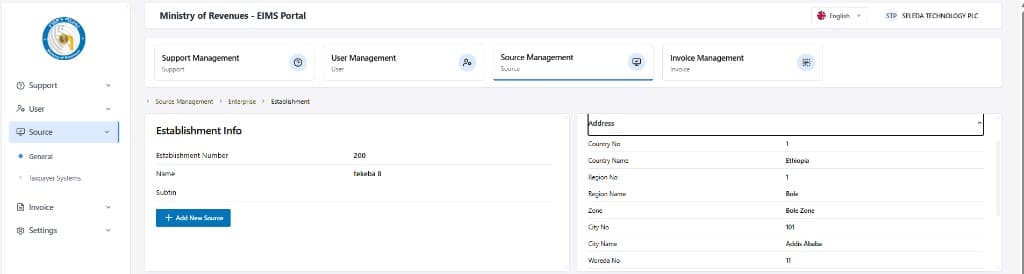
Address block — region/woreda numbers, kebele, house, email, mobileportal.mor.gov.et
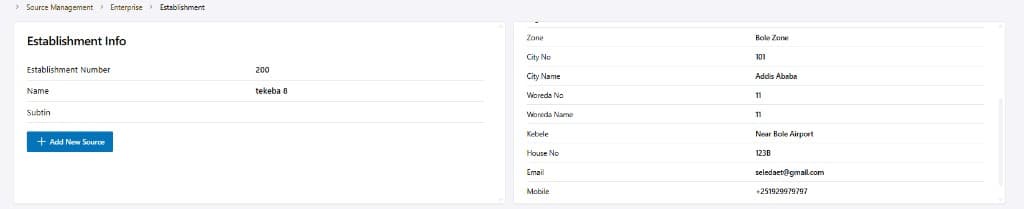
| Field | Required? | Why it matters |
|---|---|---|
Branch name e.g. tekeba 8 | Required | Human label for the location. Use the Establishment Name from the portal so staff recognize the shop. |
VAT number | Required | VAT identity for this establishment. Required by the tax model — invoices from this branch carry the correct VAT registration. |
Sub-TIN e.g. (blank for Seleda’s tekeba 8) | Optional | Secondary TIN for the establishment when the Ministry issued one (Subtin on Establishment Info). Leave blank if empty on the portal. |
Region no e.g. 1 (from Seleda’s Establishment Address) | Required | Numeric region code from the Ministry address. Used for fiscal reporting; region name alone is not enough. |
Woreda no e.g. 11 | Required | Numeric woreda code from the Ministry address. Together with region no, pinpoints the establishment for ERCA. |
Other address fields e.g. Bole Zone · Addis Ababa · Kebele Near Bole Airport · House 123B | Optional | Zone, city, woreda name, kebele, house no, etc. Helpful for clarity but not blocking in the branch form. |
Later you can add more locations from /branches — one Fidel branch per portal establishment.
Register a source & certify it (PKI)
Create the system on the Ministry portal first. After MoR approves it, you get an email with credentials — then copy those values into Fidel.
1. Create the source on the MOR portal
- Sign in at the portal → Source Management → open your enterprise → open the Establishment (e.g. Seleda’s tekeba 8).
- Click + Add New Source and register the system type (POS, ERP, …).
- Wait until the Sources list shows Status = APPROVED (requests start pending; approval is done by MoR).
Portal Sources list — Status must be APPROVED before you configure Fidelportal.mor.gov.et

2. Open the MoR credentials email
When the source is approved, MoR sends an email (from eims.mor@gmail.com) with the Source number, Source type, Taxpayer TIN, plus Client ID, Client Secret, and API Key. Keep that email private — do not share it.
Example MoR approval email — copy Source number + Client ID + Client Secret + API Key
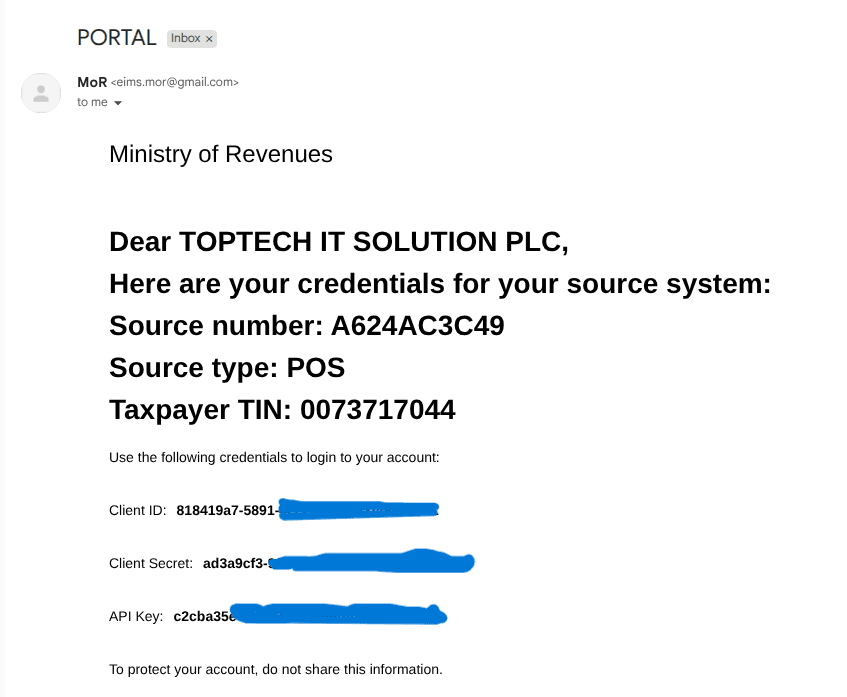
3. Paste into Fidel (create source)
Open onboarding or /sources → add a source for the matching branch. Map portal / email fields 1:1 into Fidel:
| From MoR (portal / email) | Paste into Fidel | Seleda example |
|---|---|---|
| Establishment | Branch | tekeba 8 |
| Source type / System Type | System integration type | POS |
| Source number / System No | System registration number | 886BADA3B4 |
| Client ID (email) | Client ID | UUID from MoR email |
| Client Secret (email) | Client secret | UUID from MoR email |
| API Key (email) | API key | Value from MoR email |
| Field | Required? | Why it matters |
|---|---|---|
Branch e.g. tekeba 8 | Required | Fidel branch that matches the portal Establishment this system was created under. |
System registration number e.g. 886BADA3B4 | Required | Copy Source number / System No from the MoR email or the portal Sources table. Identifies this POS to the tax authority. |
System integration type e.g. POS | Required | Must match Source type on the portal / email (POS, ERP, CRM, MAN, SYS). |
Client ID e.g. Paste from email — do not invent | Required | Copy from the MoR approval email. Fidel uses it to authenticate invoice submission. |
Client secret e.g. Paste from email — do not invent | Required | Copy from the MoR approval email. Stored securely; never shown again after save. Leave blank on edit to keep the current value. |
API key e.g. Paste from email — do not invent | Required | Copy from the MoR approval email. Required to call the fiscal APIs for this system. |
4. Then certify the source (INSA PKI)
- Generate private key — Fidel creates a 2048-bit RSA key stored privately on the server (you do not upload a key file at source registration).
- Download CSR + request form (or email the package to yourself from Fidel) — copy the INSA address / subject / message, attach both files, and send or forward to INSA.
- Upload issued X.509 certificate — PEM/CRT/CER, max 1MB. Until this is uploaded, the source is not PKI-ready.
Sources live under /sources after setup.
Billing unlock
Pay for each source and upload a receipt. Staff approve the payment before the source can sign.
Open /billing. Seleda selects the tekeba 8 POS (and any other POS if added), transfers to the listed payout account, and uploads the bank receipt.
| Field | Required? | Why it matters |
|---|---|---|
Systems to pay | Required | At least one unpaid source must be selected. Pricing may include a first-join fee and per-system charges. |
Receipt file | Required | Proof of transfer (PDF or image, max 5MB). Reviewers use this to approve or reject the payment. |
Transfer reference | Optional | Bank or mobile money reference so finance can match the deposit faster. |
Note | Optional | Anything the reviewer should know (e.g. which branch paid). |
Customers & item catalog
Scoped to the selected enterprise. Prepare at least one customer and one item before a real invoice.
Customers
Manage under /customers. Walk-in shoppers are usually individuals (name required; email / phone optional) for B2C. Business buyers are companies (legal name + TIN required) for B2B/B2G.
Items
Manage under /invoices/items. Description (min 3 chars) and unit price are required. Tax code defaults to VAT 15%. Nature is goods or services. If the enterprise applies excise, every item needs an HS code (/invoices/harmonization-codes).
| Field | Required? | Why it matters |
|---|---|---|
Customer — Name / Legal name e.g. Walk-in: Abebe Kebede · B2B: Habesha Foods PLC | Required | Buyer identity on the invoice. Individuals need a name; companies need the legal name used with their TIN. |
Customer — TIN (company) | Required | Mandatory for company buyers on B2B/B2G. Must be consistent with transaction type rules. |
Item — Description e.g. Teff 1kg pack | Required | What is being sold; appears on the fiscal invoice lines. |
Item — Unit price (ETB) | Required | Base price used with tax mode (pre-tax or with-tax) when building invoice lines. |
Item — Harmonization (HS) code | Optional | Required only when the enterprise has “Applies excise tax” enabled — otherwise leave empty. |
Create an invoice
Only sources that can sign appear. Match transaction type to the customer type.
Open /invoices/new. Real PDF example: SELEDA TECHNOLOGY PLC sold “Seleda product” to walk-in ato jemal → pick the certified source → B2C → individual customer → goods line (VAT15) → Cash → submit. See Reading your PDF for the printed result.
| Field | Required? | Why it matters |
|---|---|---|
Source e.g. tekeba 8 · POS 886BADA3B4 | Required | Which certified POS/system signs the invoice. Auto-selected if you only have one that can sign. |
Transaction type | Required | B2C (individual, no TIN), B2B or B2G (company + TIN). Wrong type blocks customer selection or fails validation. |
Customer | Required | Buyer for this sale. List is filtered by the transaction type you chose. |
Line — Catalog item | Required | Each line must pick a catalog item. You cannot mix goods and services on one invoice. |
Line — Quantity | Required | Must be greater than zero. Combined with unit price and discount for the line total. |
Payment term / mode | Optional | Defaults to Immediate and Cash. Change for credit or advance sales when needed. |
After the invoice is created
On the invoice detail page you manage PDF, email, receipts, notes, retry, and cancel.
Preview / download PDF
When IRN/PDF is available, or generate PDF once registered.
Send email
Needs IRN + PDF and a customer email.
Receipts
Available for registered invoices with an IRN.
Credit / debit notes
For registered INV documents that are not cancelled.
Retry
For FAILED status (about 3 days); may ask for Previous IRN.
Cancel
Registered invoices only — reason code required. Stays registered until the authority accepts cancellation.
Reading your PDF
When status is REGISTERED, the fiscal PDF shows the data you configured in Fidel. Use this real Cash Sales Invoice (B2C) example to see what each block means.
Sample · Cash Sales Invoice / VAT / Excise Tax · B2C
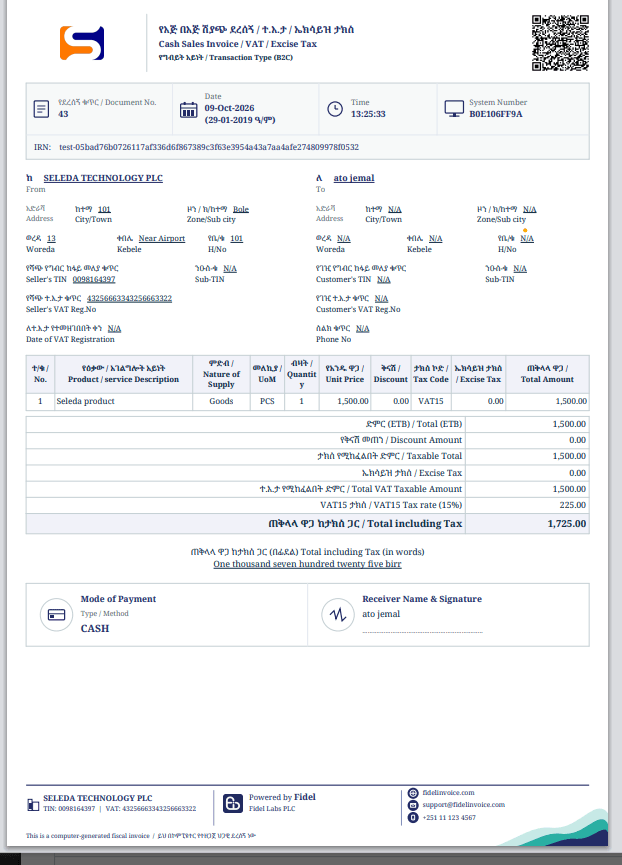
| Field | Required? | Why it matters |
|---|---|---|
Title · Transaction type (B2C) e.g. Chosen as B2C on /invoices/new | Required | Document type + buyer category. B2C = individual customer (TIN often N/A on the PDF). |
Document No. / Date / Time e.g. Document No. 43 · 09-Oct-2026 · 13:25:33 | Optional | Assigned when the invoice is created and processed — not typed by you. |
System Number e.g. B0E106FF9A | Required | Identifies the POS/source that signed the invoice. Must match the Ministry system number on your Source. |
IRN + QR code e.g. Long IRN string under the header boxes | Optional | Proof of registration. Only appear after REGISTERED (PKI + billing ready, successful submit). |
From (seller) e.g. SELEDA TECHNOLOGY PLC · TIN 0098164397 · Bole, Woreda 13 | Required | Your legal / branch identity: trade name, address, Seller TIN, VAT Reg. No. Come from Organization + Branch setup. |
To (customer) e.g. ato jemal | Required | Buyer on the invoice. For B2C individuals, name is enough — address/TIN can show N/A. |
Line items e.g. Seleda product · Goods · PCS · 1 · 1,500 · VAT15 | Required | Catalog description, nature (Goods/Services), UoM, qty, unit price, discount, tax code, excise. |
Totals (VAT / grand total) e.g. Taxable 1,500 → VAT 225 → Total incl. tax 1,725 | Optional | Calculated from lines + tax codes. VAT15 = 15% of taxable amount. |
Mode of Payment e.g. CASH | Optional | Payment mode from the create-invoice form (Cash / Credit / Advance). |
Receiver name & signature e.g. ato jemal | Optional | Usually mirrors the customer name for the printed hand-off / acknowledgement line. |
Invoice statuses
What each badge means while an invoice moves through the authority.
| Status | Meaning |
|---|---|
| PENDING / QUEUED | Accepted locally — waiting to send or process |
| SUBMITTED | Sent to the authority — awaiting registration |
| REGISTERED | Success — IRN available |
| FAILED | Rejected or errored — fix data and retry if still allowed |
| CANCELLED | Cancellation accepted (or in progress) |
Troubleshooting
If something blocks you, match the symptom to the fix below.
Stuck on onboarding
Finish enterprise → branch → source → certificate in order. Missing Sources permission can hide the next step.
No source on new invoice
The source needs a valid INSA certificate and approved billing (can sign).
Redirected to Billing
PKI is done but payment is not approved yet. Upload the receipt and wait for review.
Organization suspended
You can view data, but create/update actions stay blocked until the org is active again.
TIN / customer type errors
Match customer type to transaction type (B2C individual vs B2B/B2G company TIN).
Goods + services on one invoice
Split into two invoices — one nature of supply per document.
Branch address rejected
Region no and woreda no must match the Ministry establishment. Re-copy from the portal.
Password reset & team invites
Extra account flows for owners and invited staff.
- Forgot password: /forgot-password → OTP → /reset-password → login
- Invited staff: open invite link → /set-password → login. Owners manage people under /members
- Roles (Owner, Admin, Cashier, Sales, …) control which menu items each person sees.
Ready when you are
Start with Seleda’s pattern: legal org → enterprise → branch (portal establishment) → POS source → certify → pay → invoice.
Fidel Invoice · Client documentation · Field rules match the live application forms